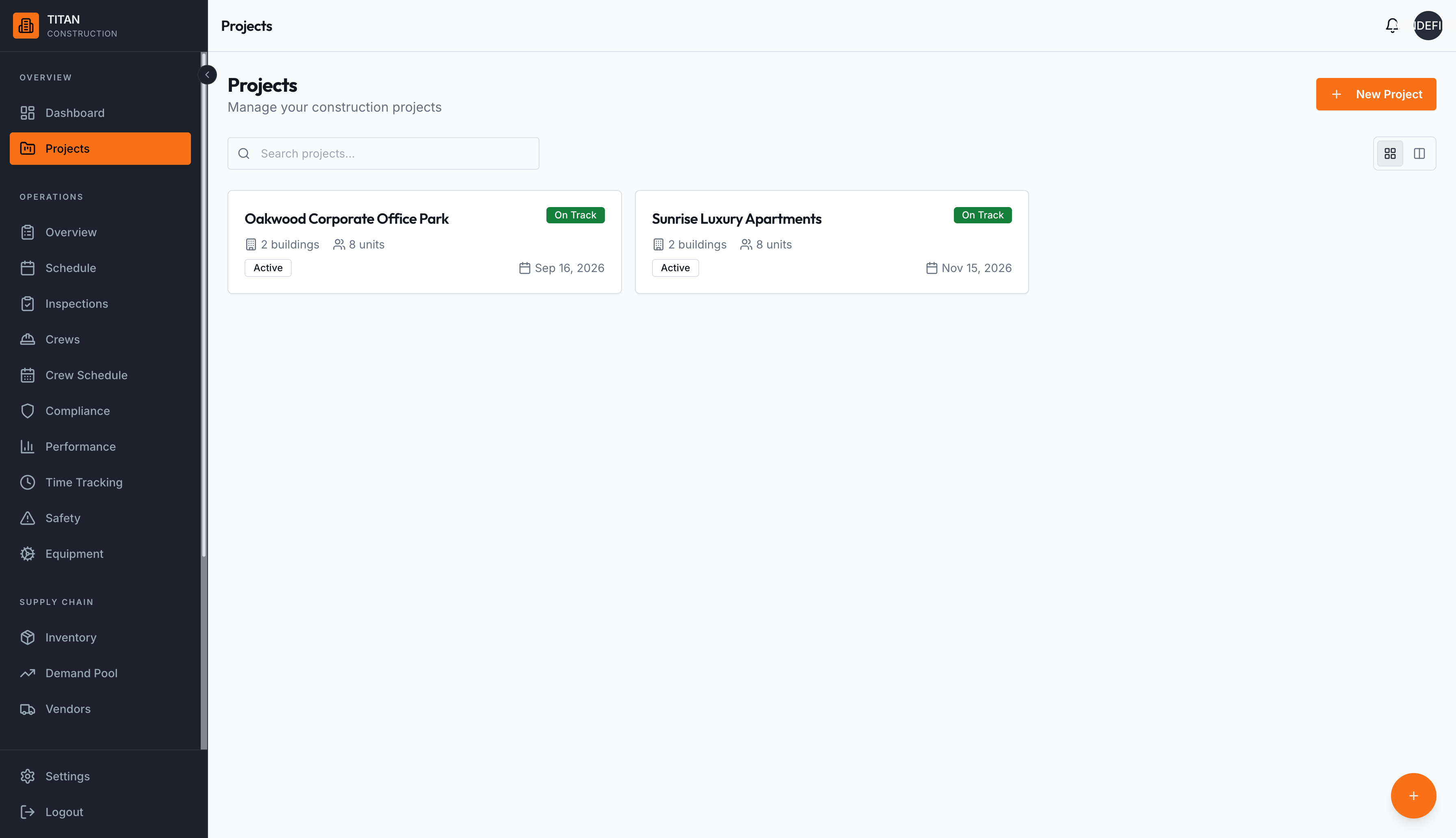
Day-to-Day Operations Jake Owens Luis Mendez
Construction day one. Jake checks the Look-Ahead tab — the weekly focus view shows exactly what's scheduled for the next 1-4 weeks. Flooring Alpha starts Building A, units 1-10 this week.
Luis and his crew arrive on site. He opens Time Tracking > Clock In/Out and clocks in each of his 6 crew members. The widget shows each person's active status with time elapsed.
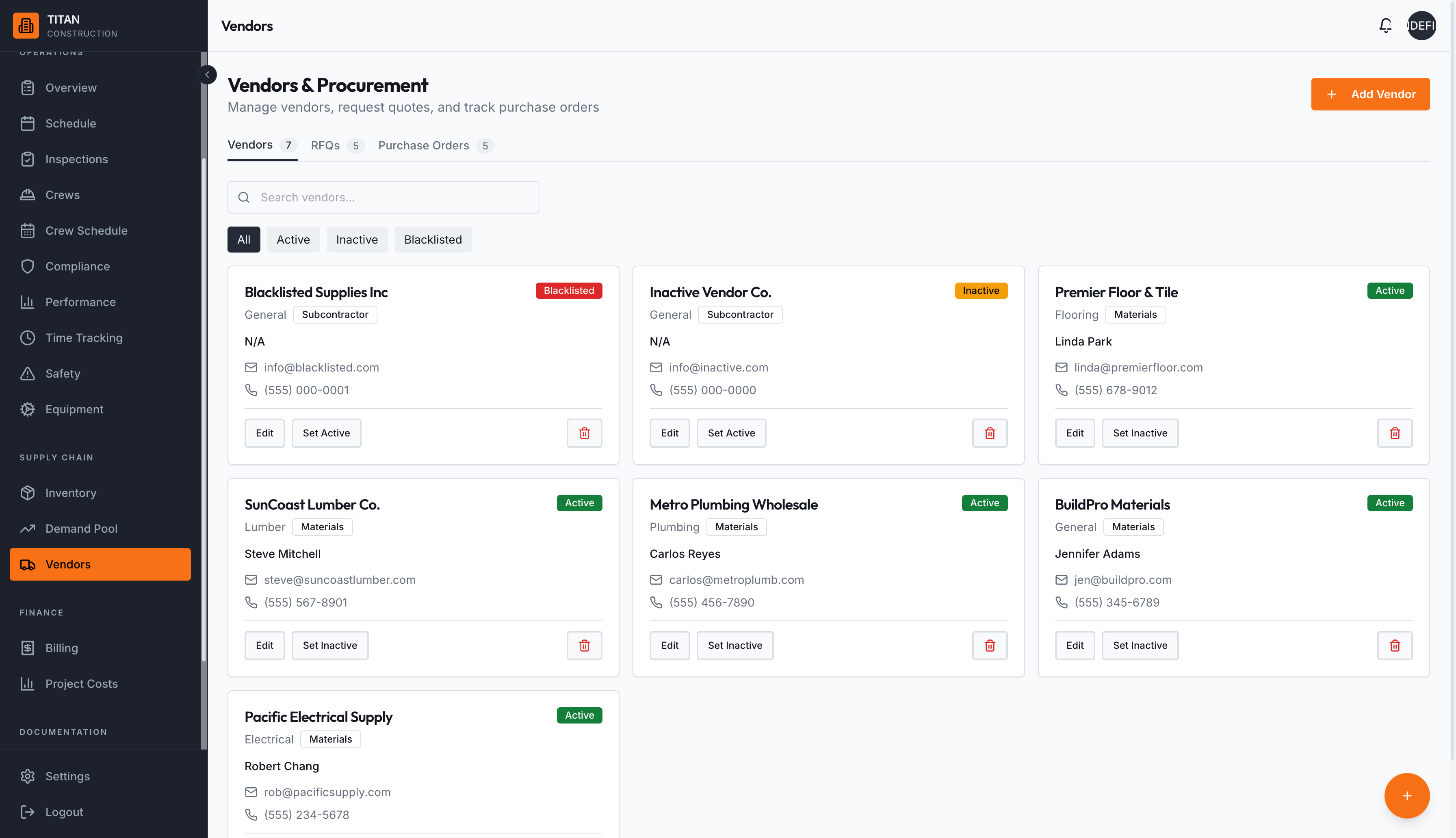
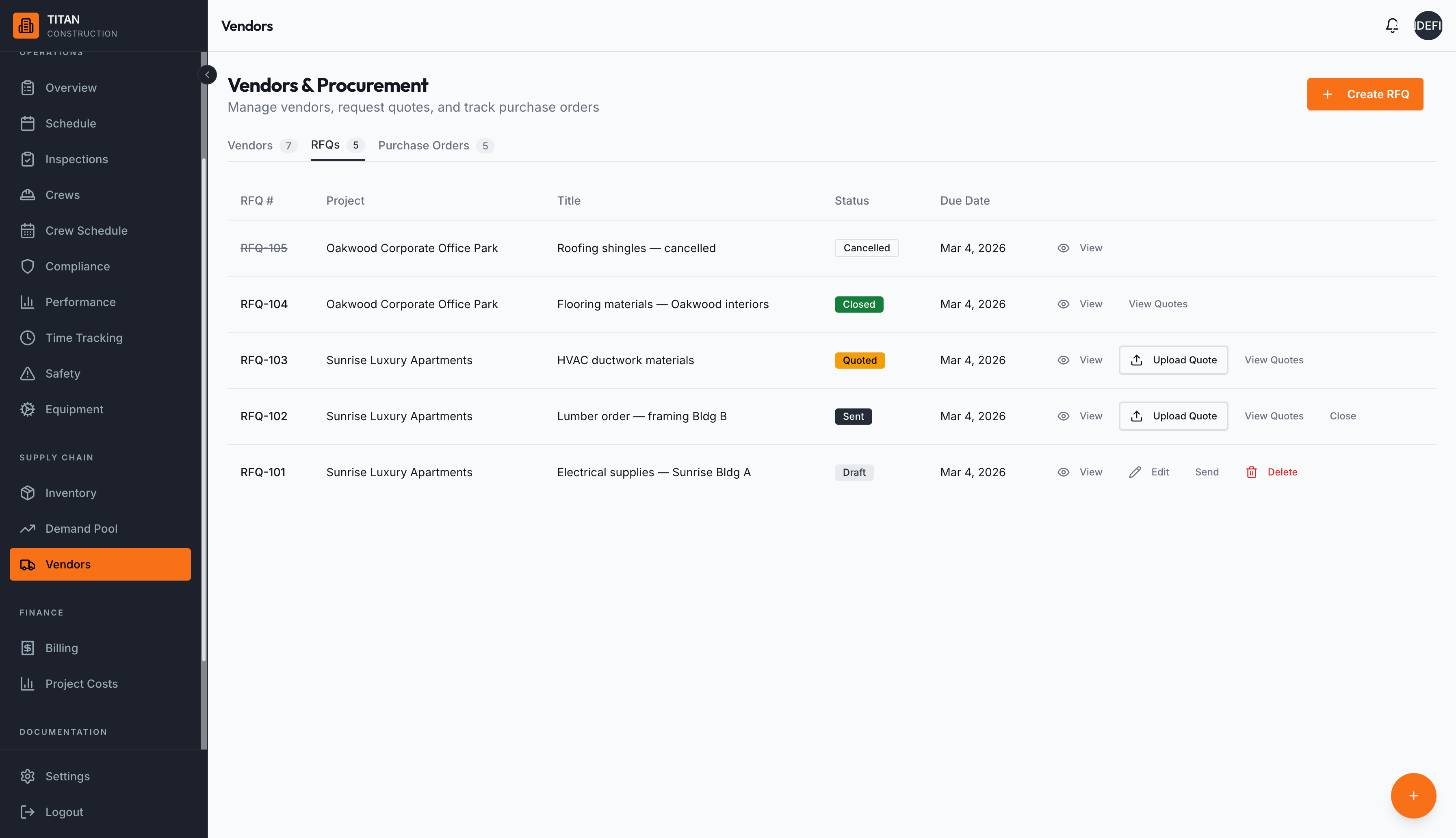
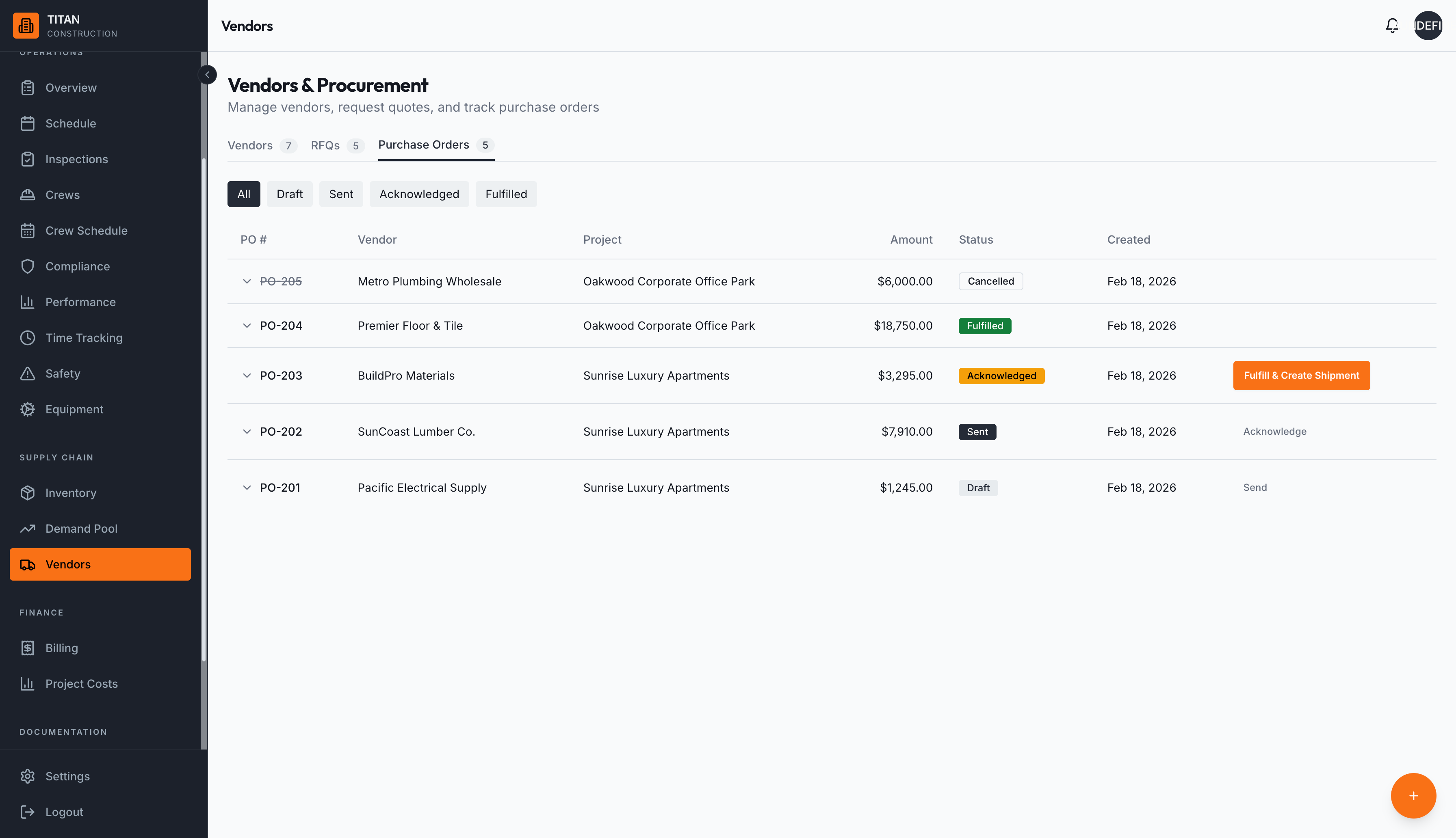
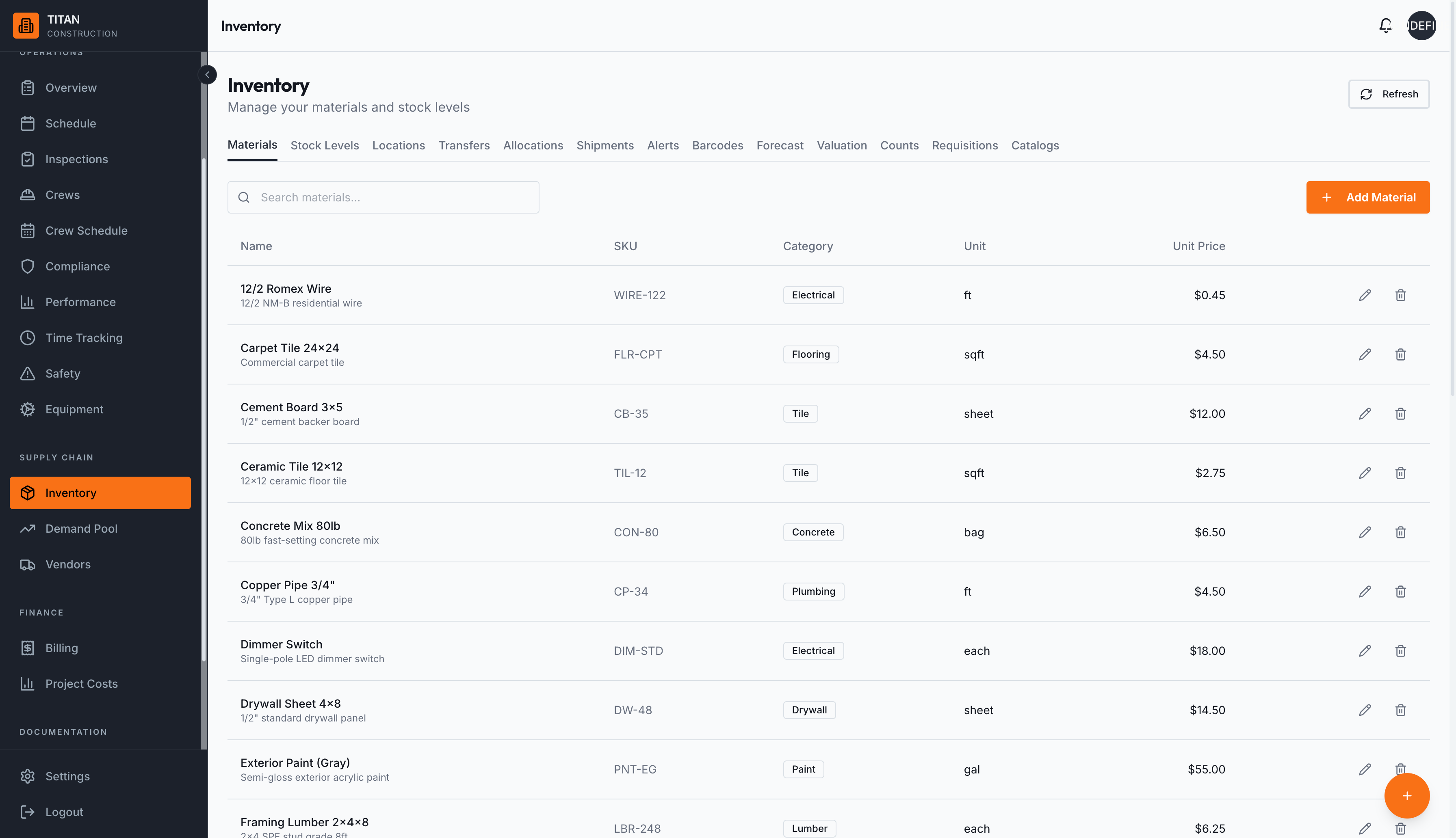
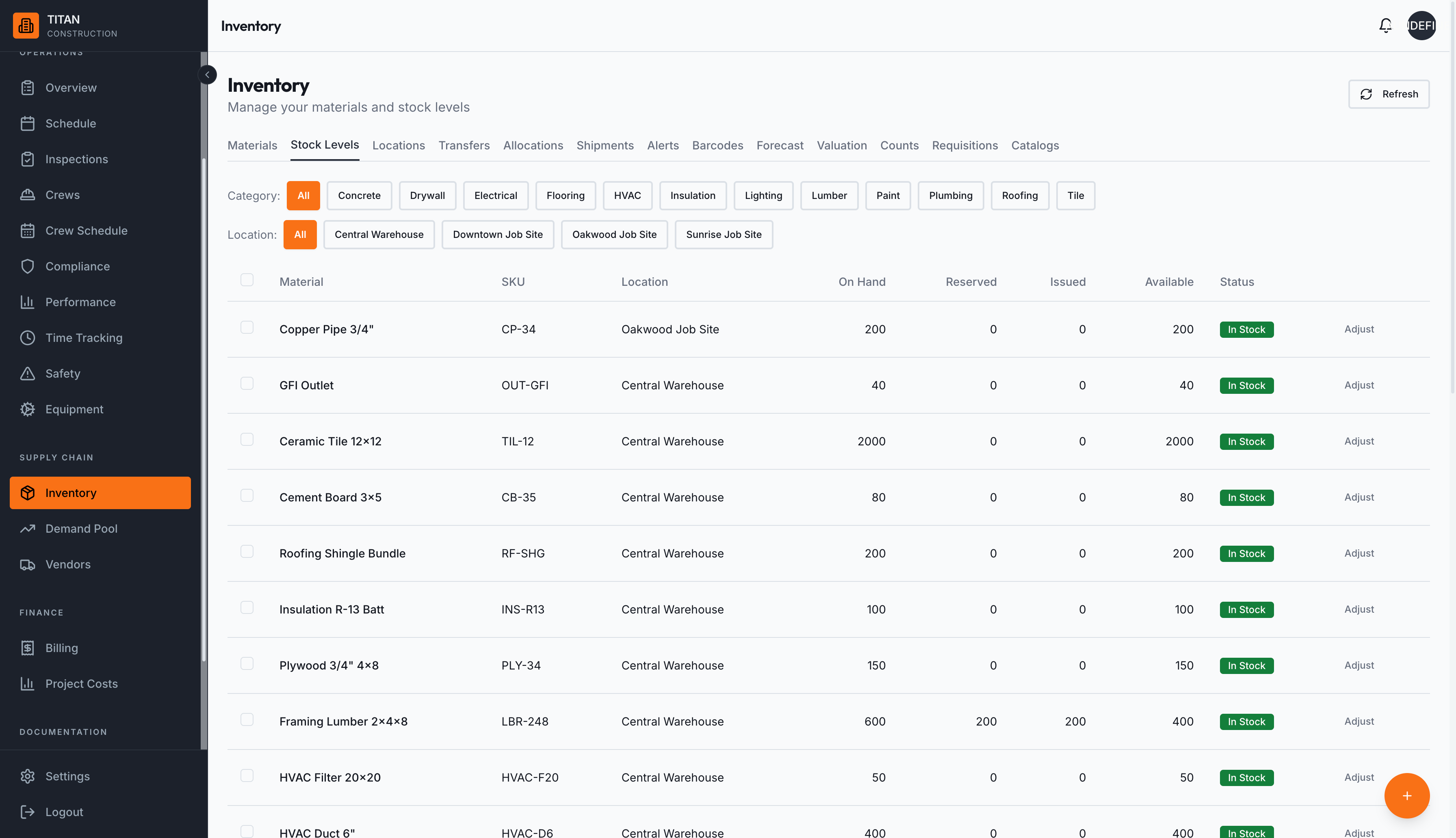
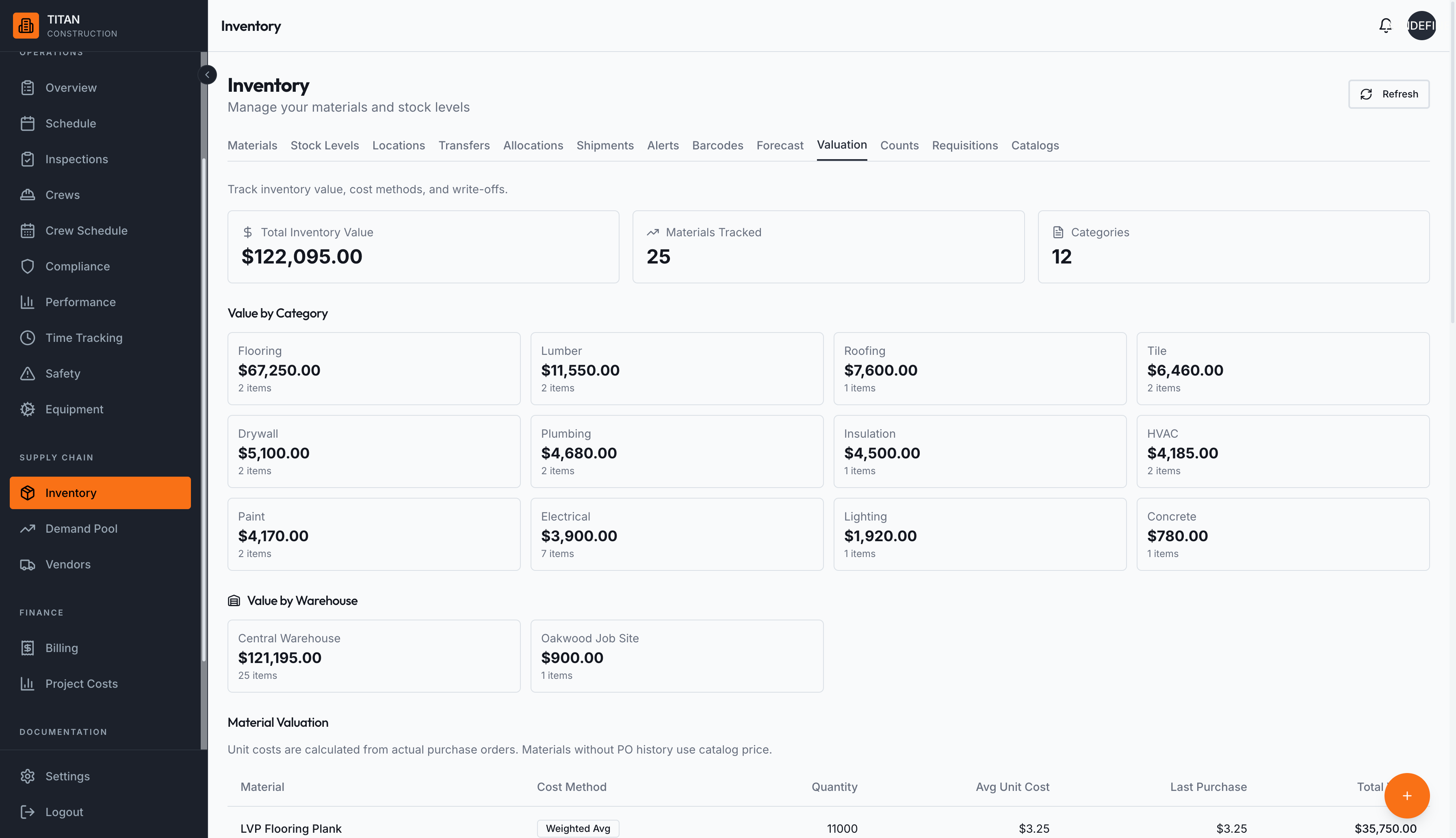
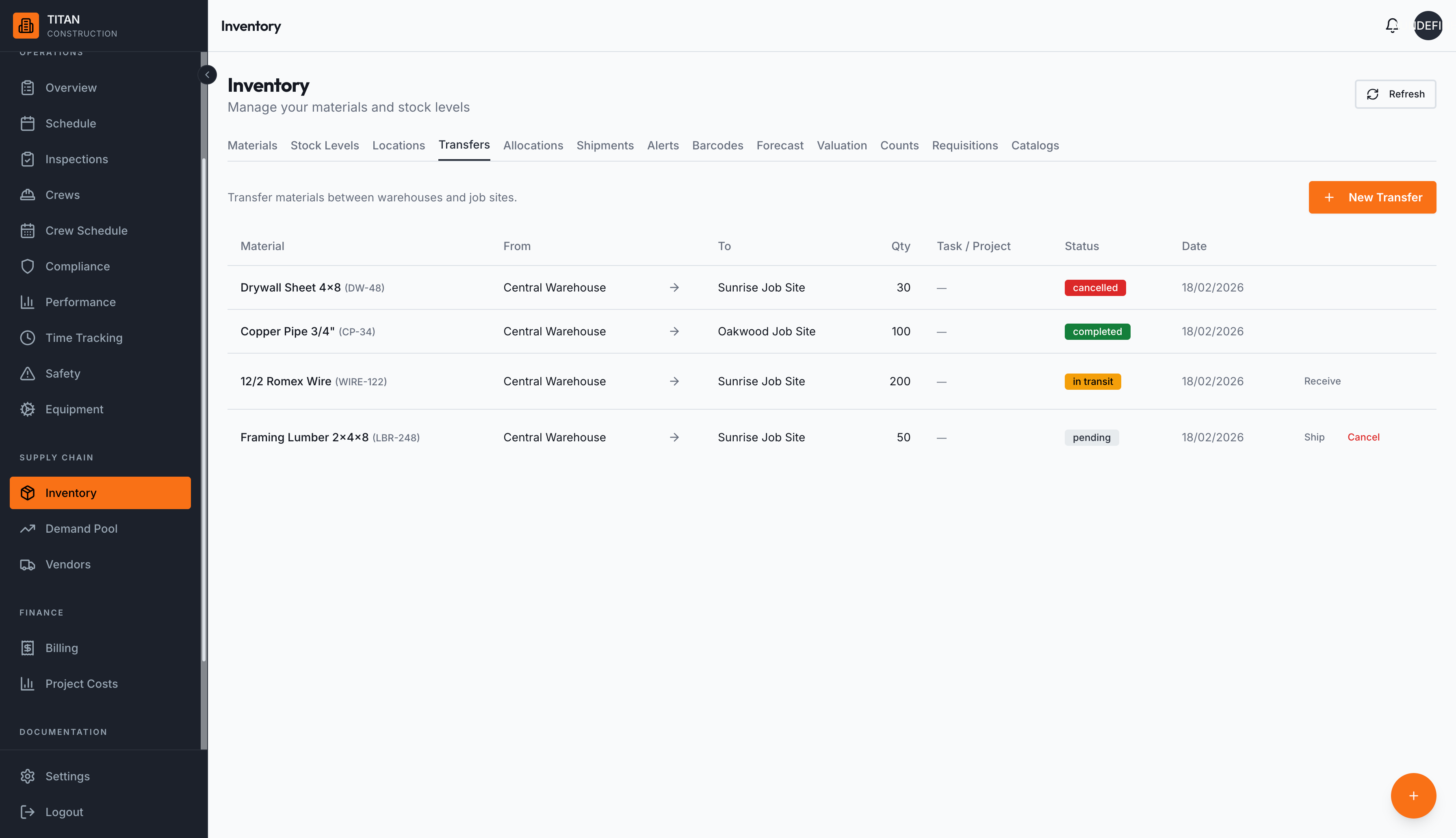
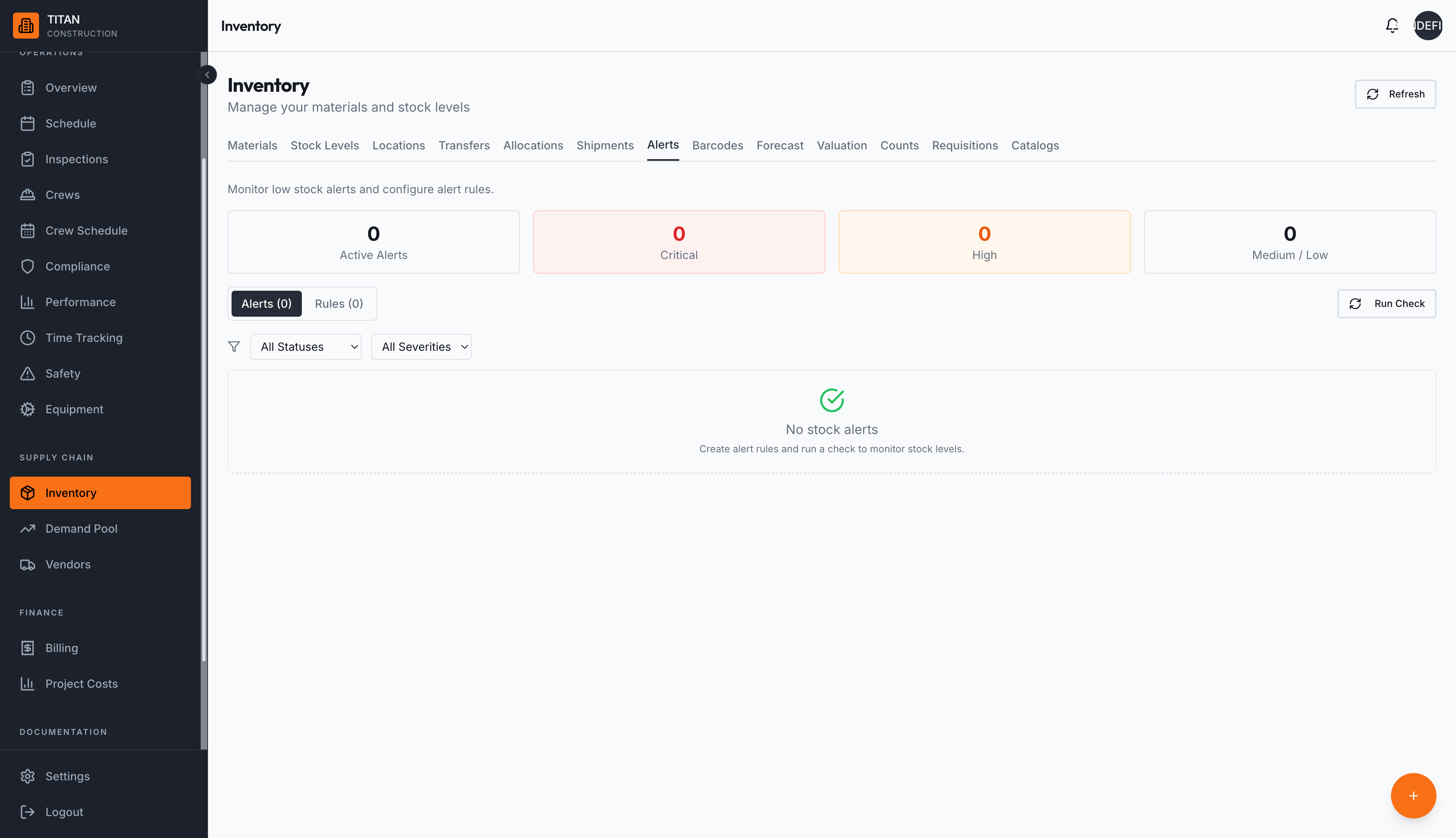
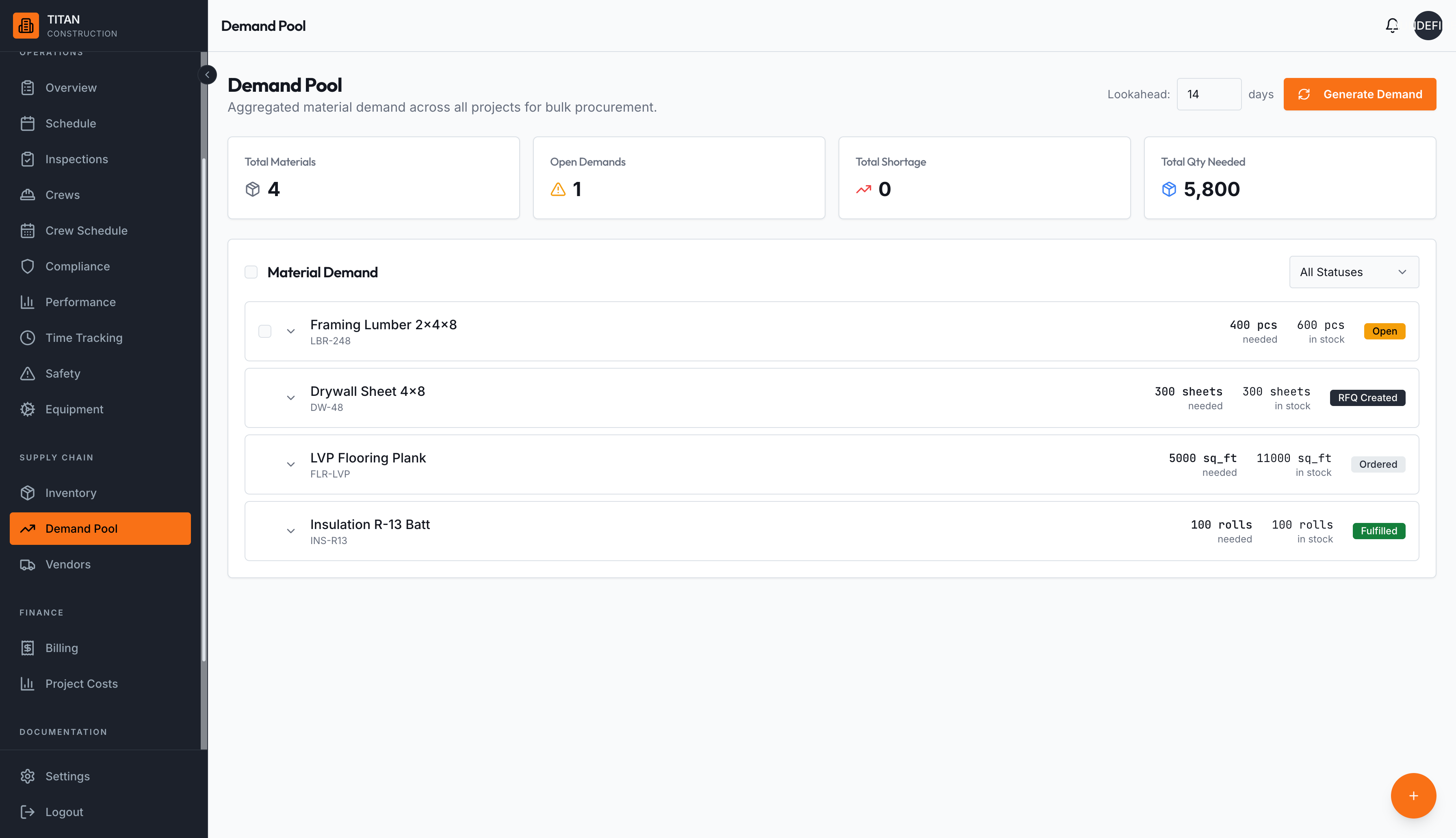
At midday, Jake receives a material shipment. He goes to Vendors > Purchase Orders, creates a shipment with tracking number, then receives it in Inventory > Shipments. The system automatically updates stock levels, creates cost entries with PO unit cost, and marks the PO as "Fulfilled" when fully received.
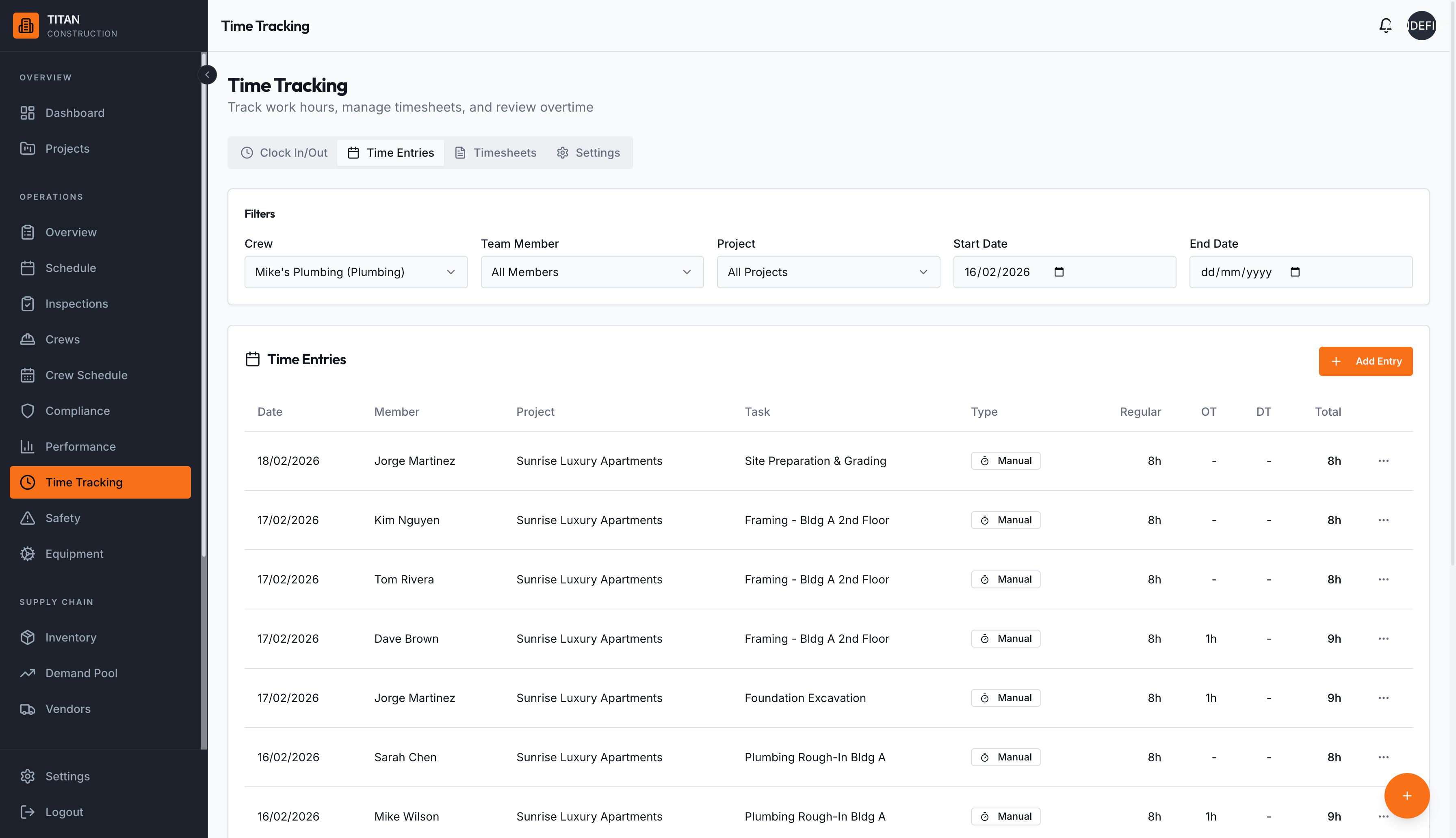
Time Tracking — Entries with hours, overtime, and project allocation
“Field staff need a dedicated mobile app for on-site work.” ROADMAP
Currently TITAN is a web application that uses responsive design breakpoints for smaller screens. Field-relevant features like time clock-in, QR scanning, barcode scanning, and photo uploads all work in the browser, but there is no native mobile app or offline support. We are evaluating the best approach — a Progressive Web App (PWA) for quick deployment with offline caching, or a native React Native app for full device integration and push notifications. The priority is offline-first architecture for field conditions with poor connectivity, plus mobile-optimized workflows for clock-in, photo capture, and punch item resolution.
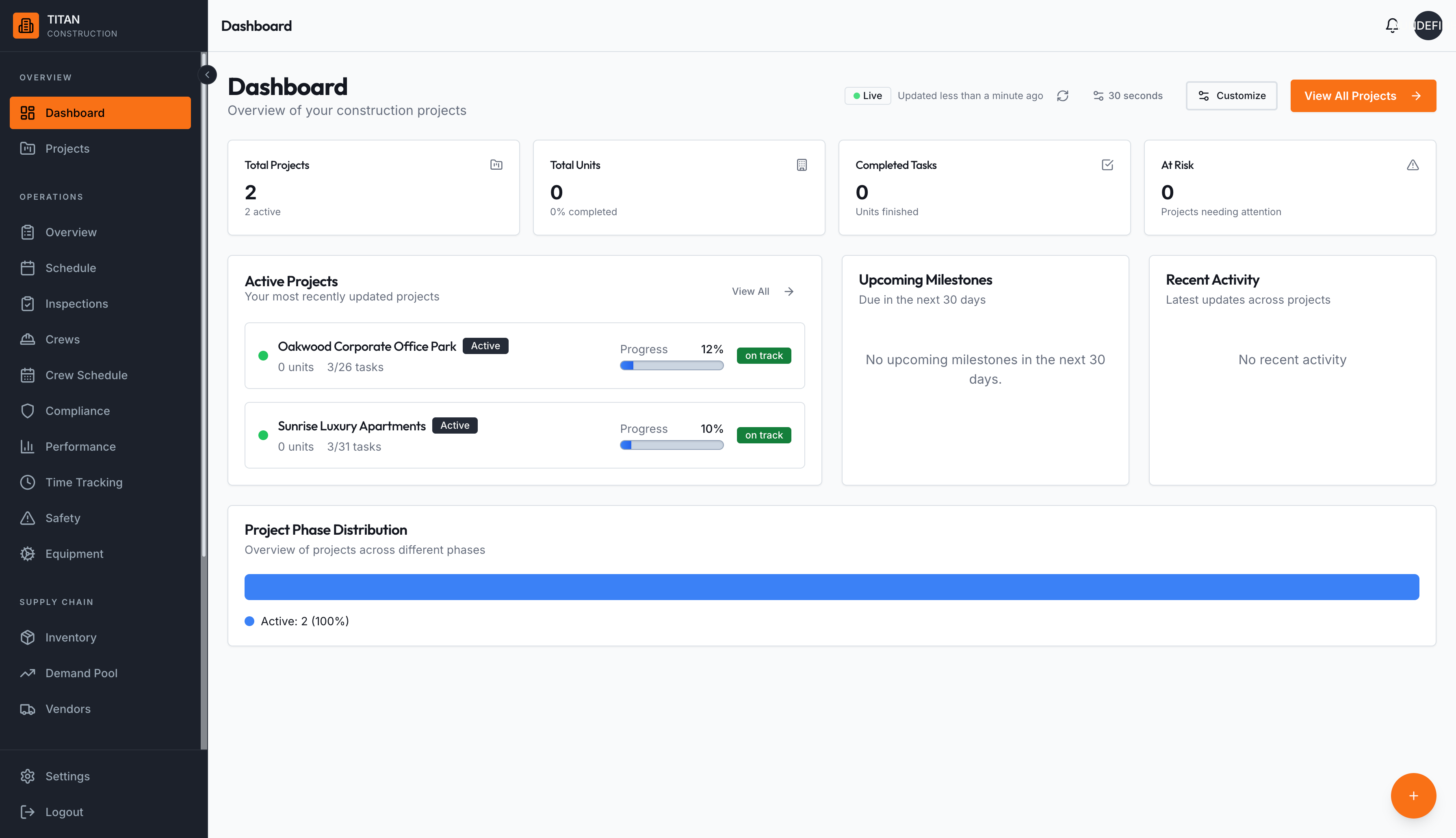
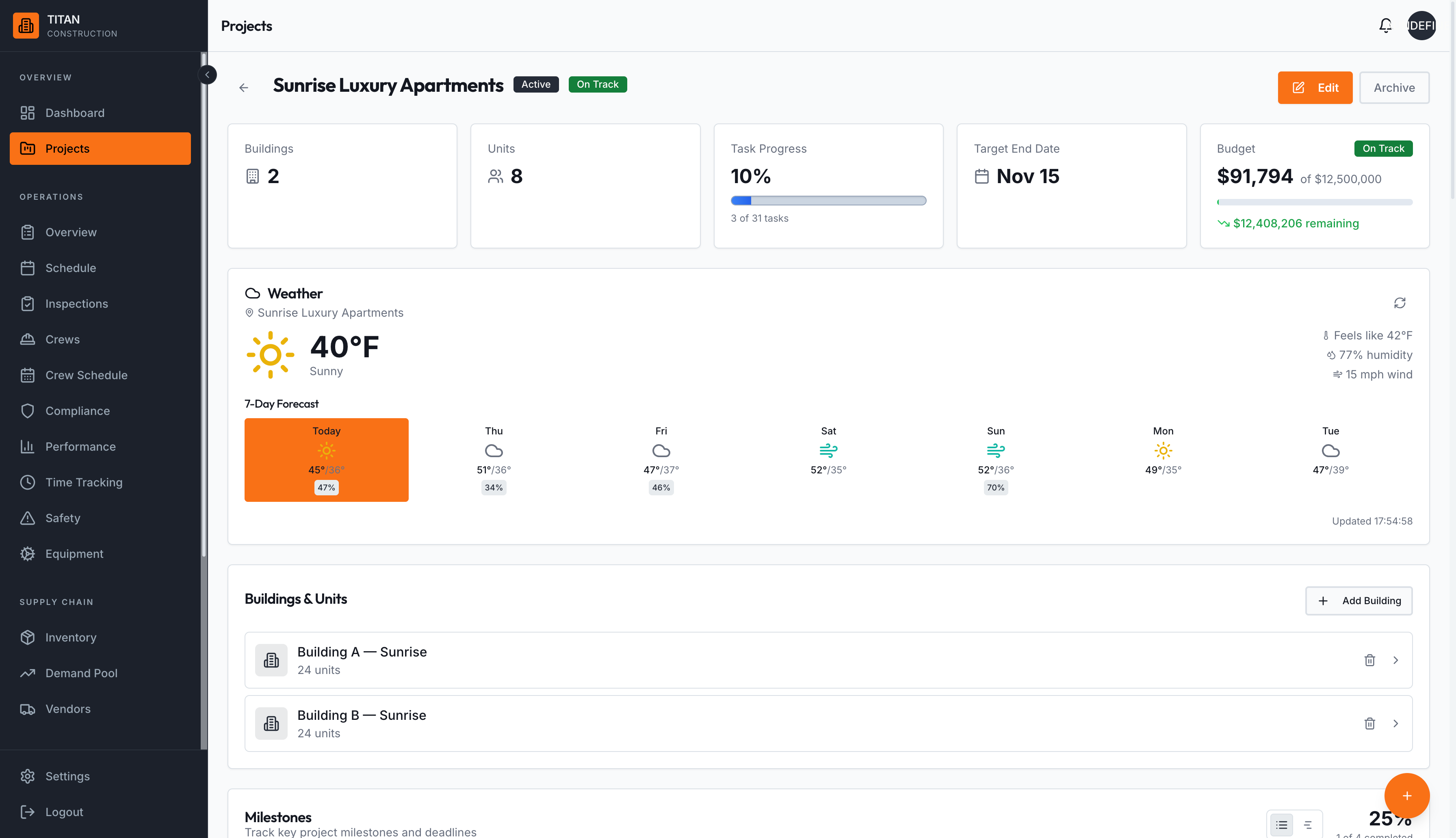
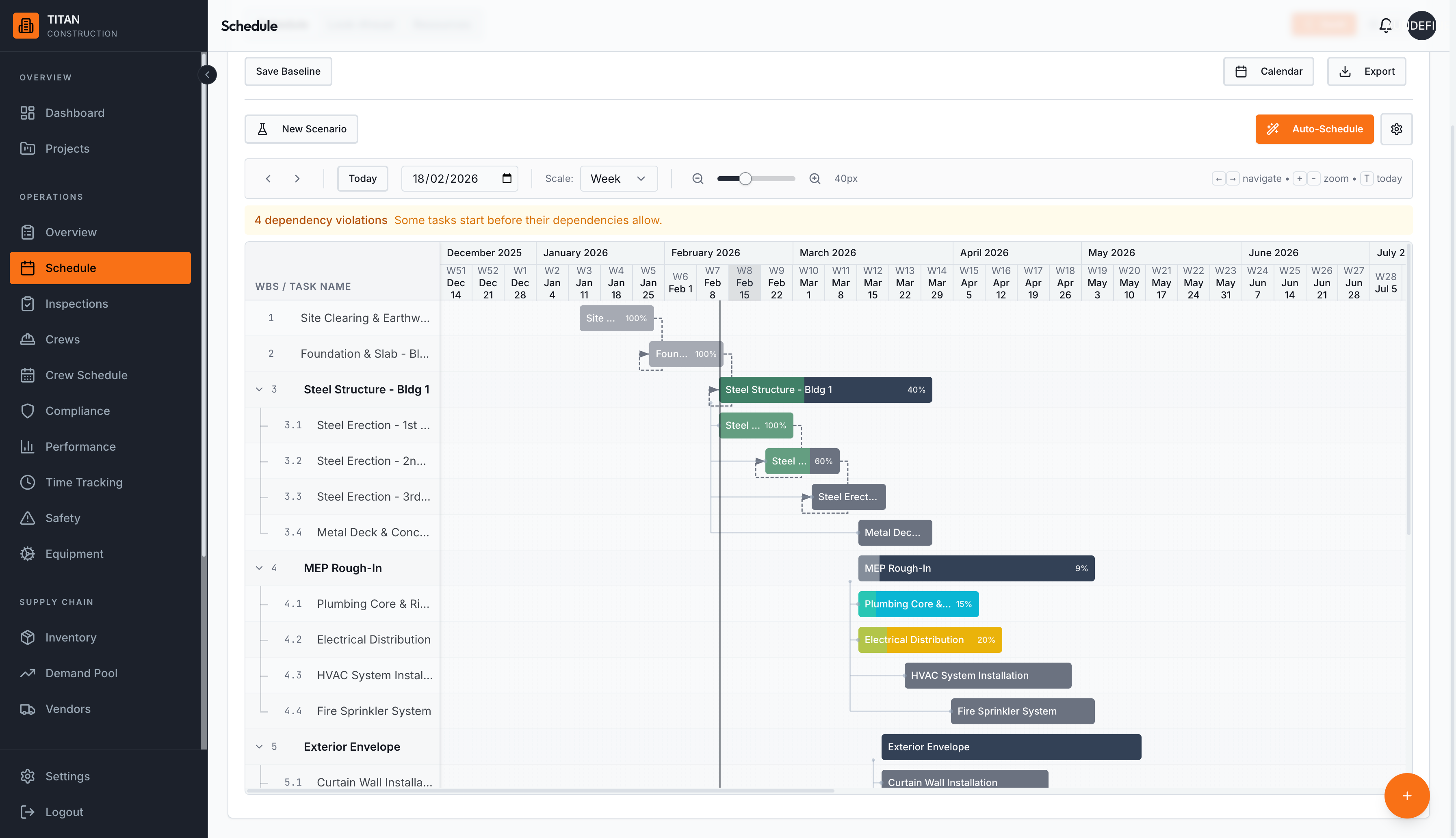
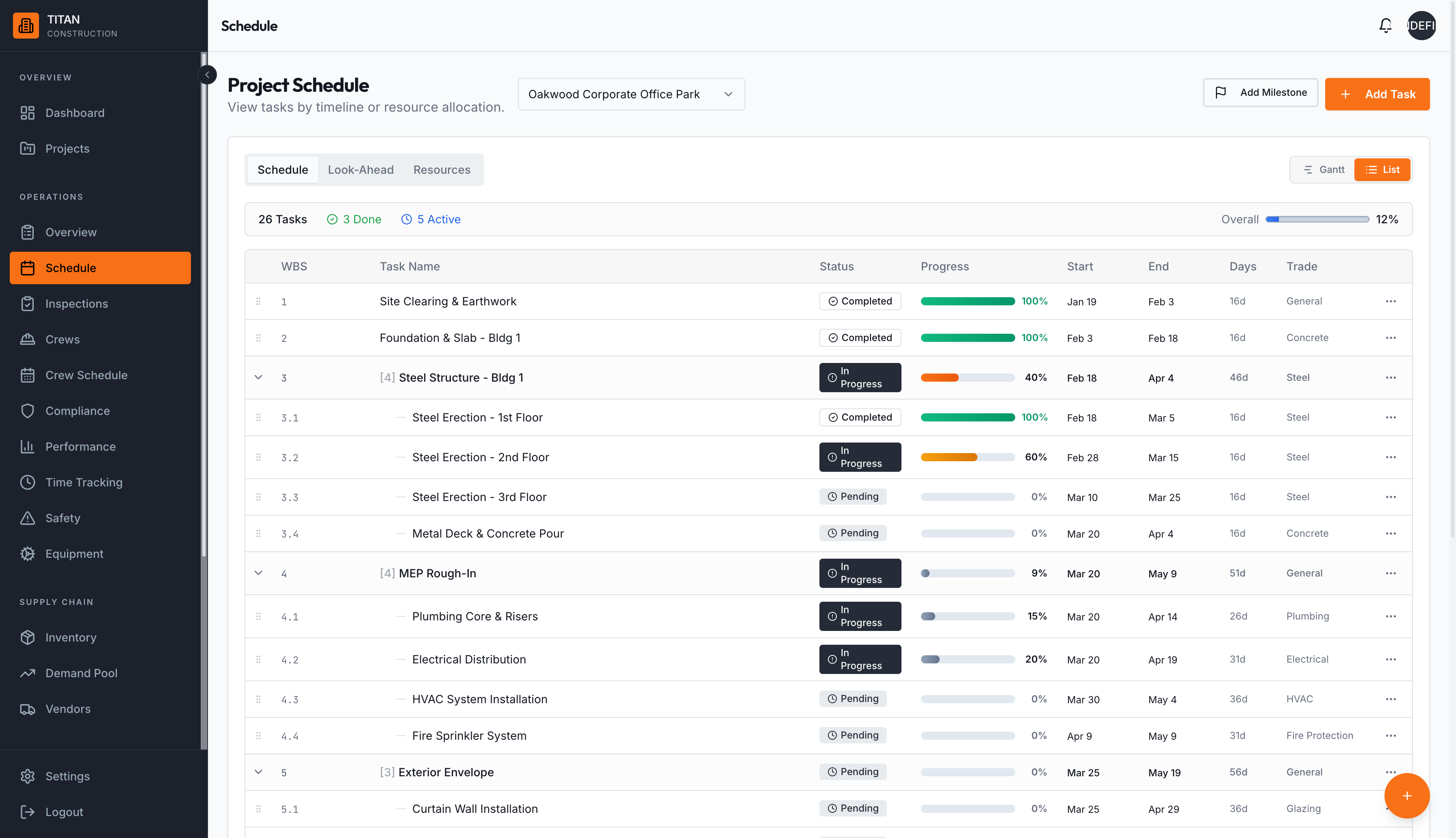
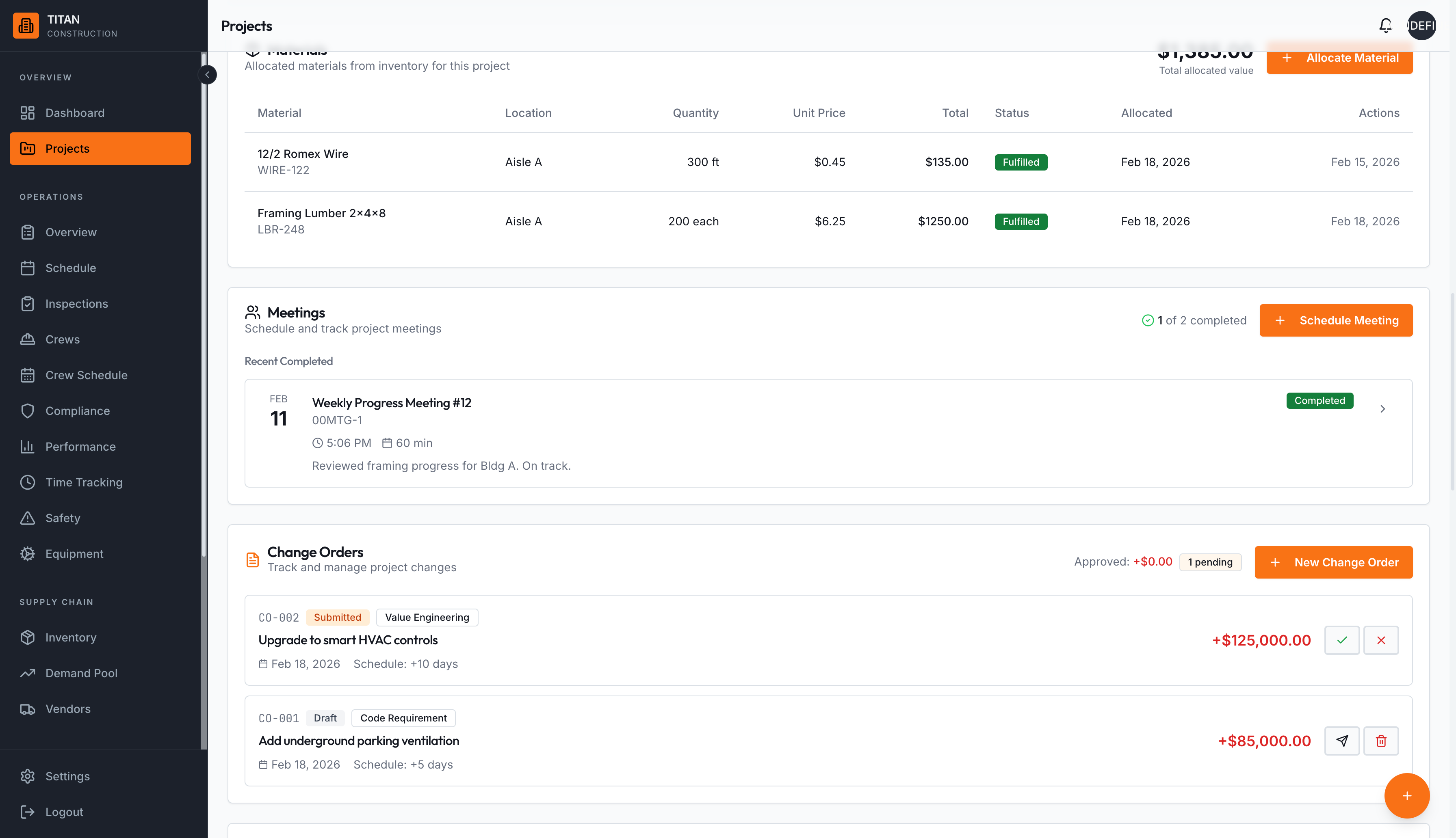
On the Gantt Chart, Maria updates task progress by clicking tasks and adjusting completion. She toggles baseline visibility — after one week, the live bars are tracking slightly ahead of the baseline. The stat cards now read: 4 Buildings, 200 Units, 8% Task Progress.
Operations Overview Maria Torres
Maria checks the Operations Overview for a readiness dashboard. Summary cards show counts for Ready, Partial, Blocked, and Material Alert statuses. Earned Value Management (EVM) metrics — CPI, SPI, BAC, EAC, and VAC — give real-time cost and schedule performance insights.
The Blocked panel highlights tasks held up by missing predecessors, materials, crews, or equipment. Material Alerts list shortages within the 2-week window with a quick "Procure" action.
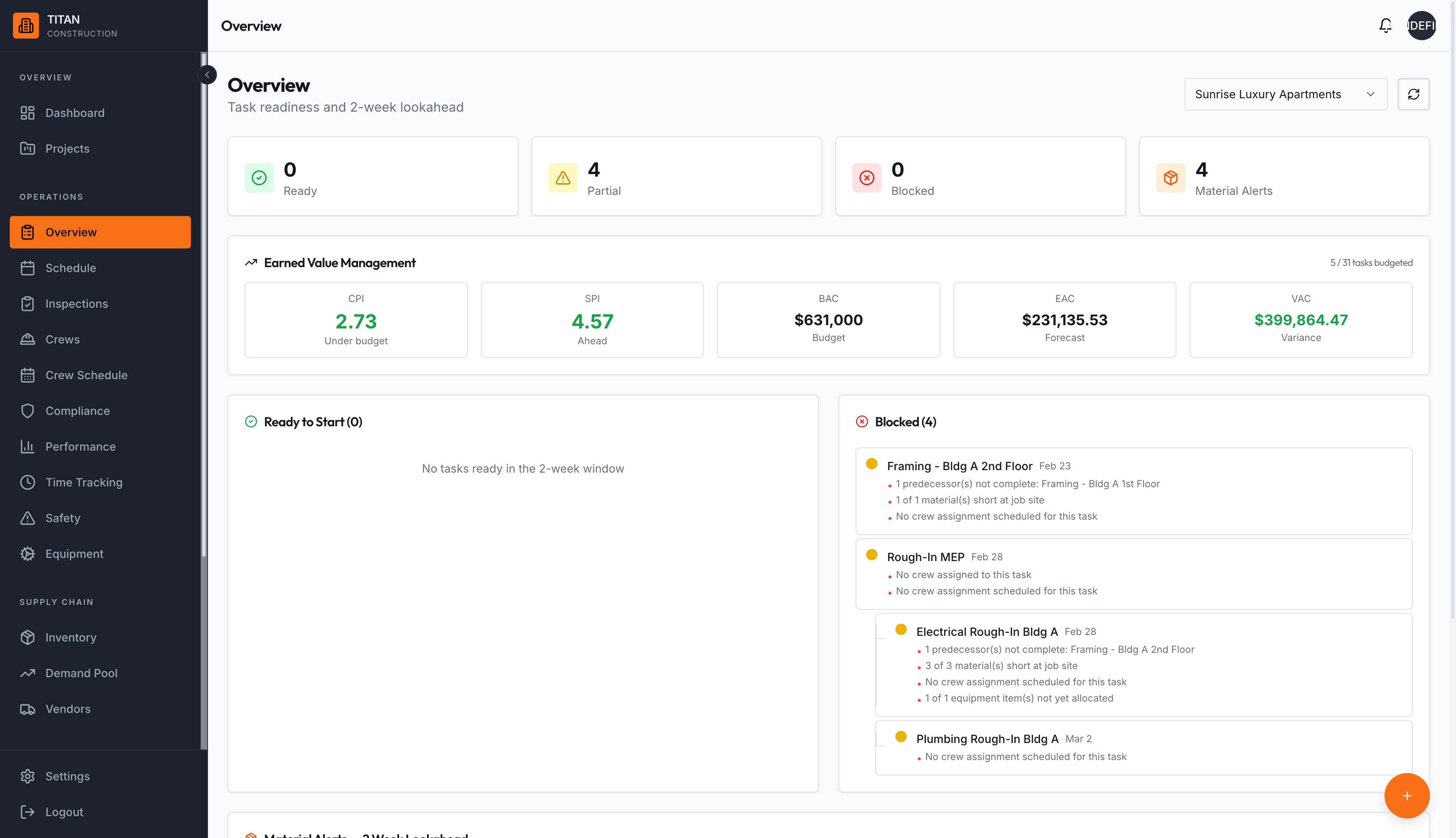
Readiness Dashboard & EVM
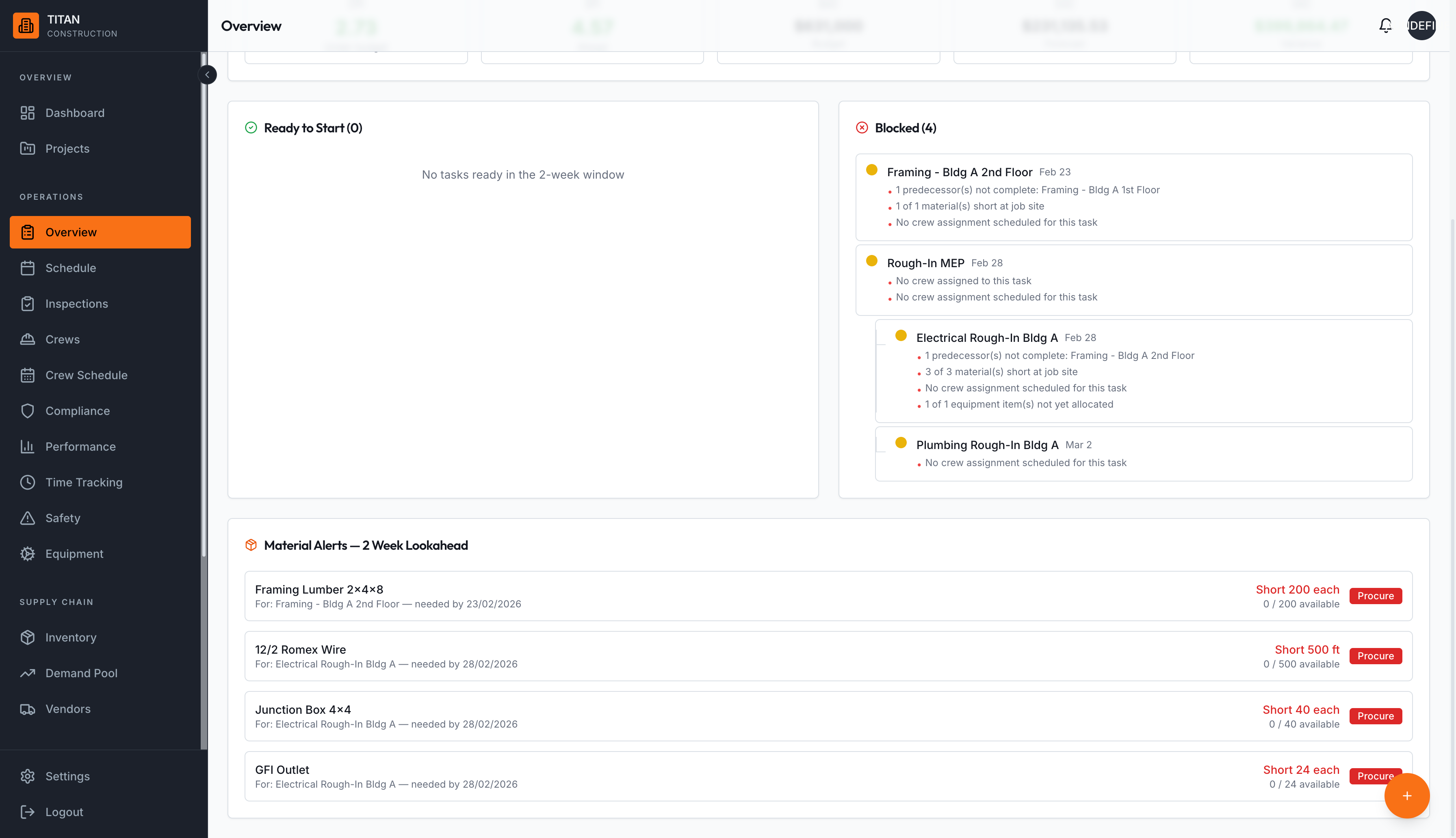
Blocked Tasks & Material Alerts
Requisitions & Price Comparison Rachel Kim
Rachel needs additional flooring for Building B due to a scope change. She creates a Requisition for 500 sqft of LVP Flooring and submits it. Maria approves, and Rachel runs a Price Comparison across all vendor catalogs to find the best price, then creates a PO directly from the comparison.
When materials arrive, she clicks "Fulfill" on the requisition — selecting inventory items, entering quantities, and the system deducts from stock and creates an Allocation record.
End-to-End Flow: Requisition → Approval → Price Comparison → PO Creation → Shipment Receive → Fulfill — all tracked with full audit trail.
Inspections & Punch Lists Jake Owens
Two weeks in, units 1-10 in Building A are ready for flooring inspection. Jake schedules the inspection with preconfigured checklists, assigns inspector Tom Wilson, and sets the date/time.
Tom performs the inspection. Jake records results: 8 Passed, 1 Failed ("Transition strip lifting at bedroom doorway"), 1 Pending.
For the failed unit, Jake creates a Punch Item — assigned to Luis, with trade, priority, description, and due date. The punch item goes through a multi-stage workflow:
Stage 1
Subcontractor Fix
→
Stage 2
Superintendent Review
→
Luis fixes the issue, uploads before/after photos, and marks the subcontractor stage complete. Jake reviews and approves at the superintendent stage. Each signoff is recorded with timestamp, user, and notes.
Safety & Incident Management Jake Owens
That afternoon, a crew member trips over unsecured material in Building B. Jake immediately opens the Safety page and files an incident report: date/time, location (Building B, Unit B-205), description, severity (Minor), people involved, and immediate actions taken.
He adds an Investigation with root cause analysis and creates Corrective Actions: secure all staging materials, add walkway signage, brief all crews on housekeeping. Each action tracks status and due date.
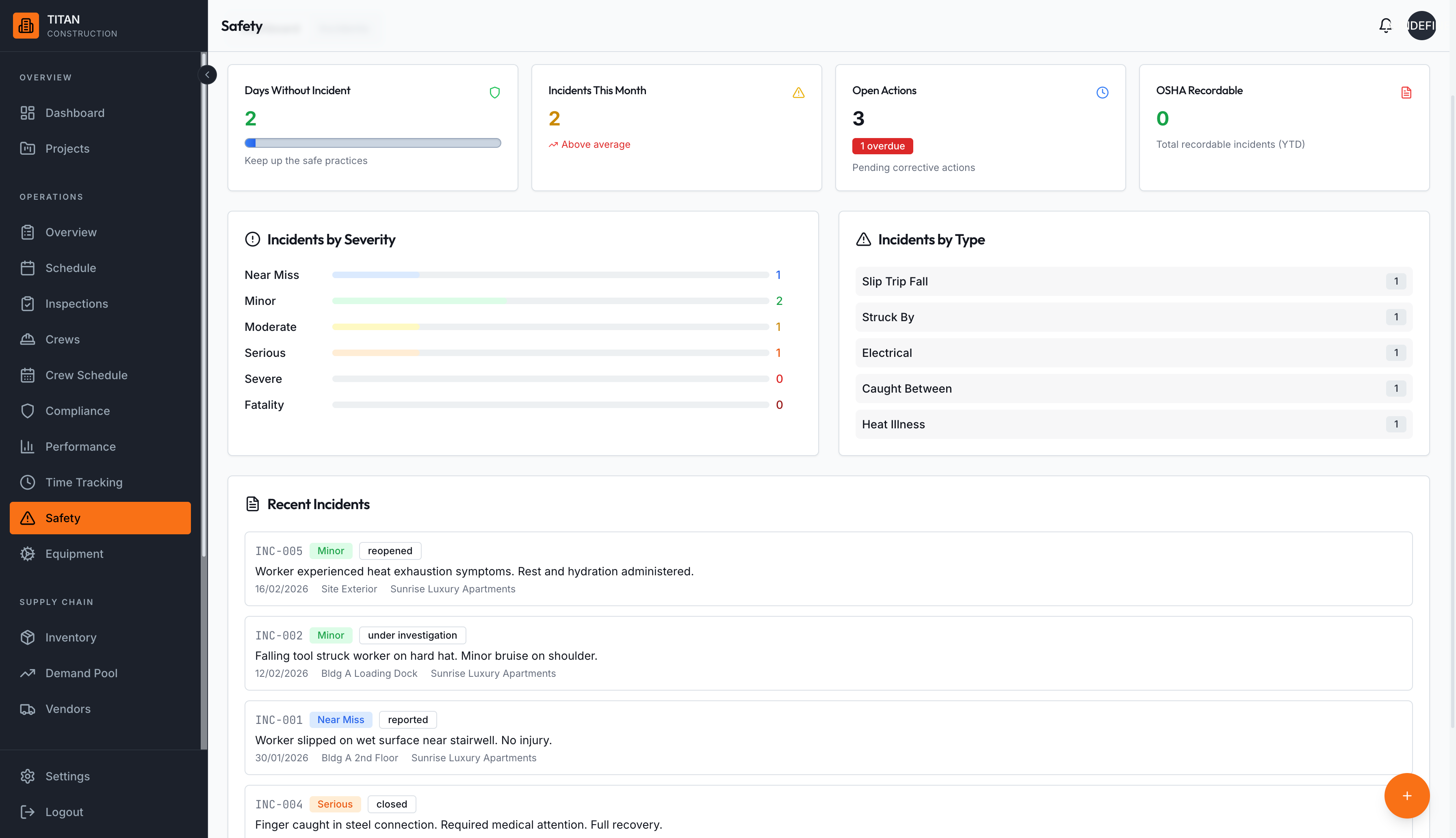
Safety Dashboard — Incident tracking, severity breakdown, and KPIs
“We need geo-fencing for site arrival, mandatory safety videos, and electronic signatures before workers can access the site.” ROADMAP
Currently TITAN tracks safety training completion (course name, provider, duration) and has JHA sign-off fields, but there is no GPS/geo-fencing, video delivery system, or signature pad component. We are planning a full on-site check-in workflow: (1) Geo-fencing — GPS integration with project lat/lng boundaries that detects when a worker arrives on site; (2) Safety video — a video library with player and mandatory watch-completion tracking; (3) E-sign — a signature pad component with an acknowledgment audit trail. The flow: arrive on site → geo-fence triggers → safety video plays → e-sign confirms → access granted.
Performance & Productivity Luis Mendez
Luis wraps up the day. On Crews > Performance, he logs output: 12 units floored, crew size 6 members, quality rating 4/5. The Performance Dashboard shows efficiency trends, units per day, quality scores, and comparison against targets.
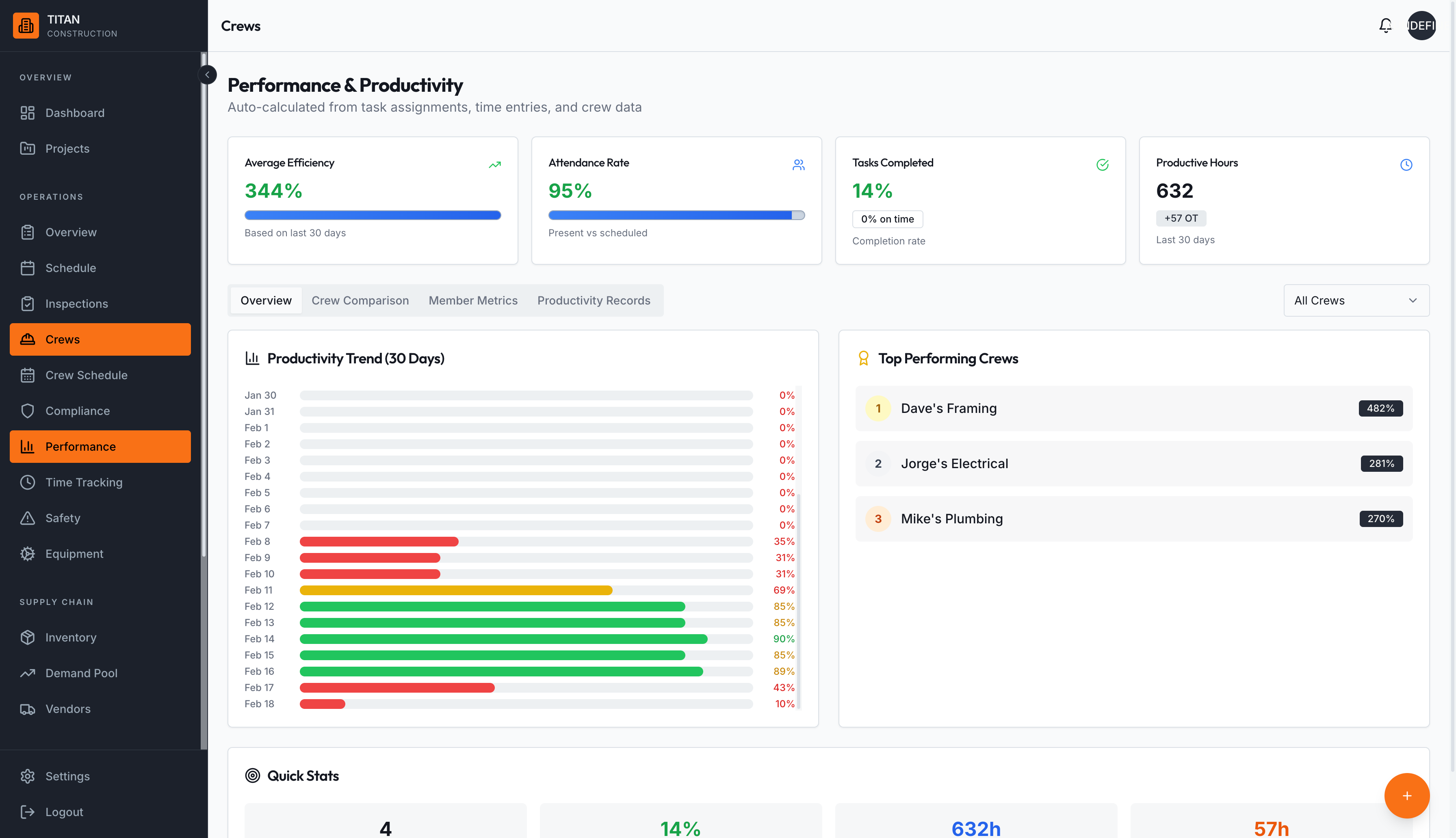
Performance — Productivity trends, crew rankings, and member metrics
Equipment Management Jake Owens
Jake tracks equipment from the Equipment page. The Dashboard shows utilization charts, upcoming maintenance windows, and condition status. He notices the tile saw in Building B is flagged for maintenance — overdue for blade replacement.
He schedules maintenance and checks out a backup saw for the countertop crew. Equipment assignments stay linked to crews and projects. Crew members can use the QR Scanner to quickly check equipment status in the field.
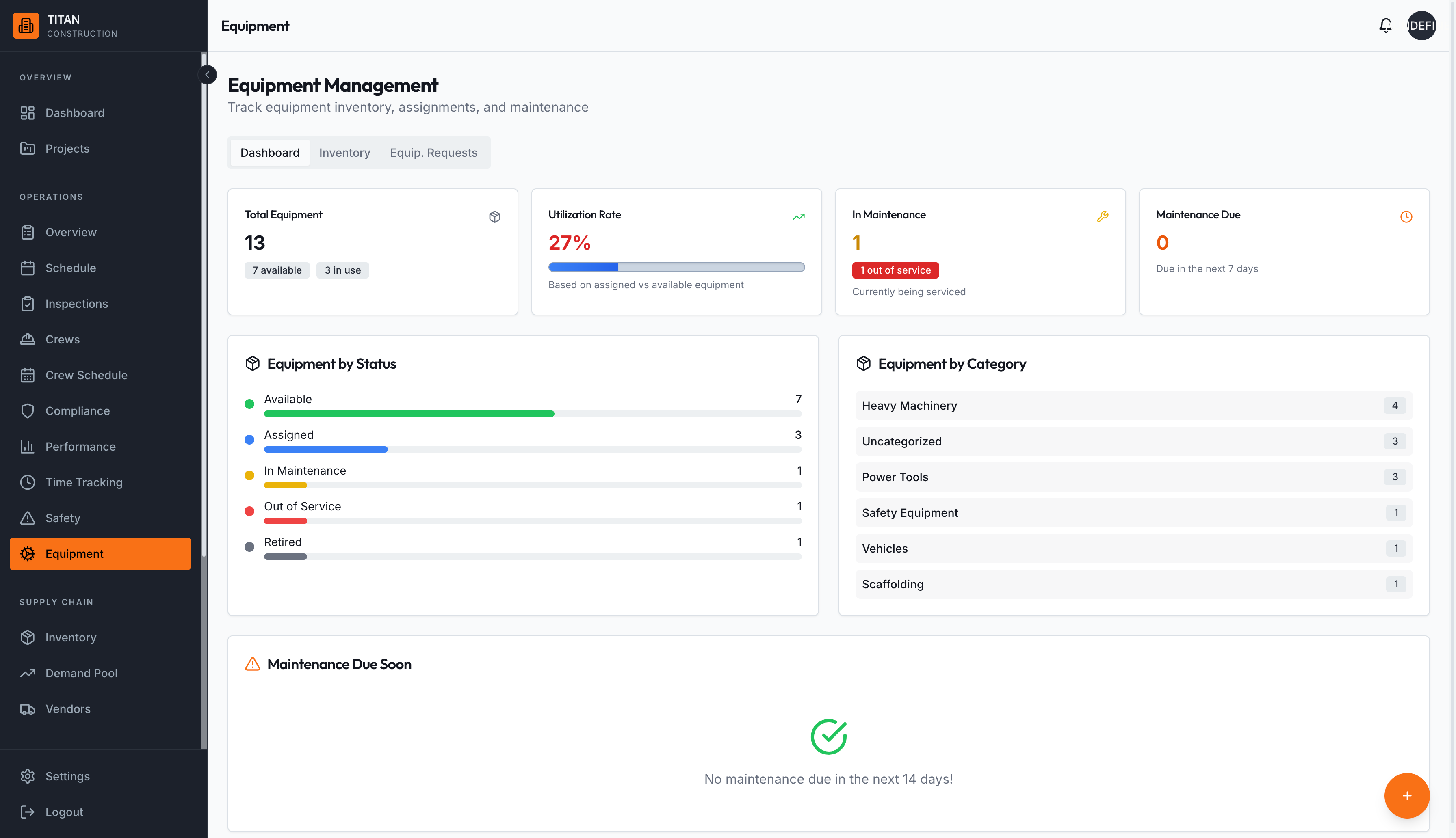
Equipment Management — Utilization, status distribution, and maintenance alerts
Documents, RFIs & Submittals Jake Owens Rachel Kim
Three weeks in, the cabinet crew finds a discrepancy — the drawings show 36" uppers for Building C, but the contract spec says 42". Jake creates an RFI with spec references and conflicting drawing pages attached. When the architect responds (42" is correct), Maria adds the response and closes the RFI.
Rachel manages the Submittal process — creating submittals for shop drawings with spec section, title, and due date. She tracks status: "Approved" for cabinet drawings, "Revise & Resubmit" for bath finish samples (revision numbers auto-increment).
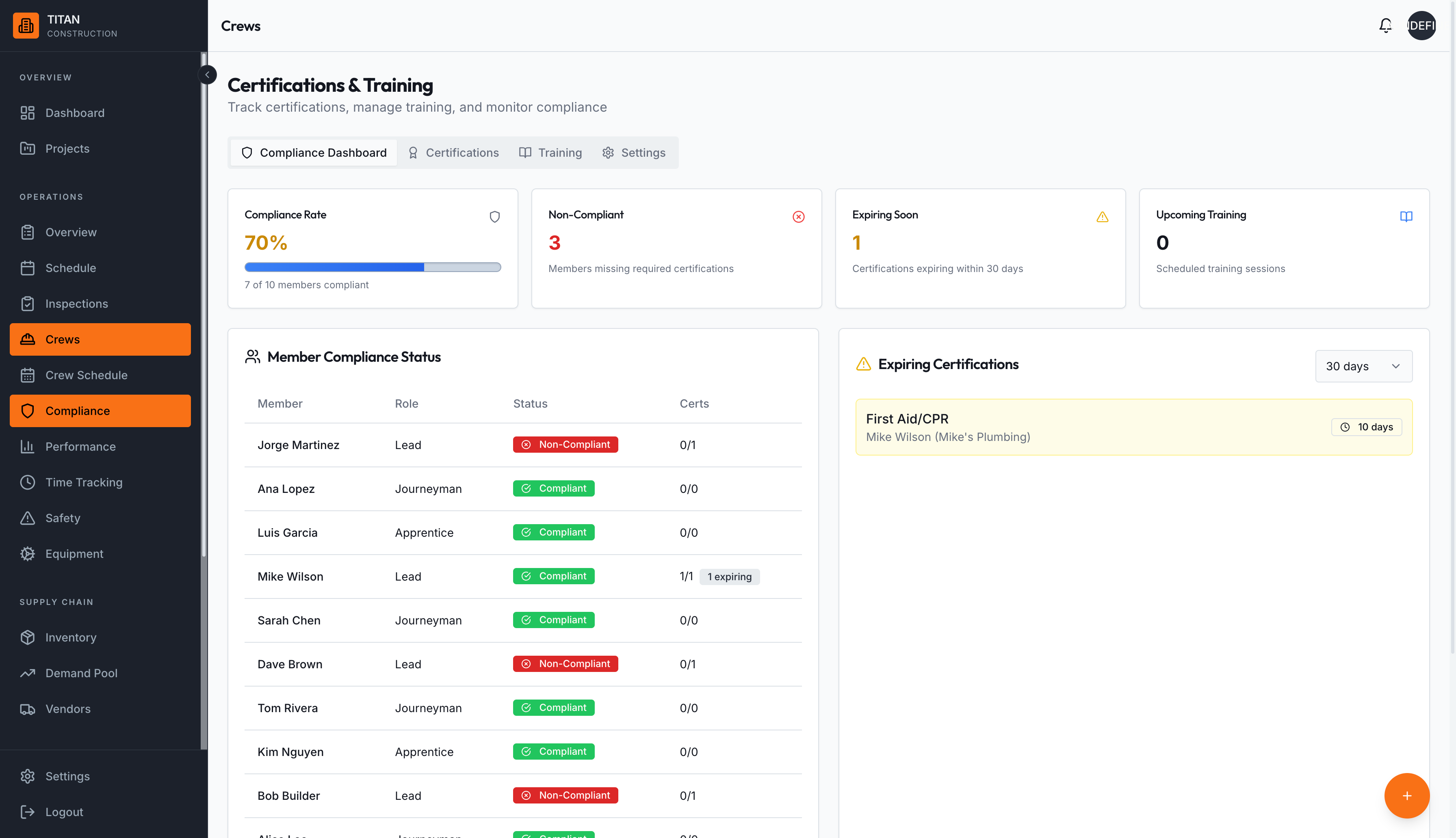
On the Compliance tab, Rachel uploads compliance documents and monitors the Expiring Compliance Alert — flagging a vendor whose general liability expires in 15 days.
Full Audit Trail: Every RFI exchange, submittal revision, and compliance document is timestamped and documented — critical for dispute resolution and project closeout.
“Can we send RFIs directly to vendors via email, not just track them internally?” QUICK WIN
Currently RFIs are managed internally — assigned to team members but not sent to external vendors. The email infrastructure is already solid (Resend provider with React email templates), and the RFQ module already has a vendor-send workflow we can mirror. We are adding a vendor selector on RFI detail, a dedicated RFI email template, and a "Send to Vendors" action that tracks delivery status. This follows the same proven pattern as RFQ vendor emails.
Timesheets, Overtime & Crew Scheduling Rachel Kim Jake Owens
End of the week: Rachel opens Timesheets — a weekly grid aggregating all clock-in/out entries. One crew member logged 52 hours. The system has automatically calculated 12 hours of overtime based on configured rules (daily OT at 8 hrs, weekly at 40 hrs).
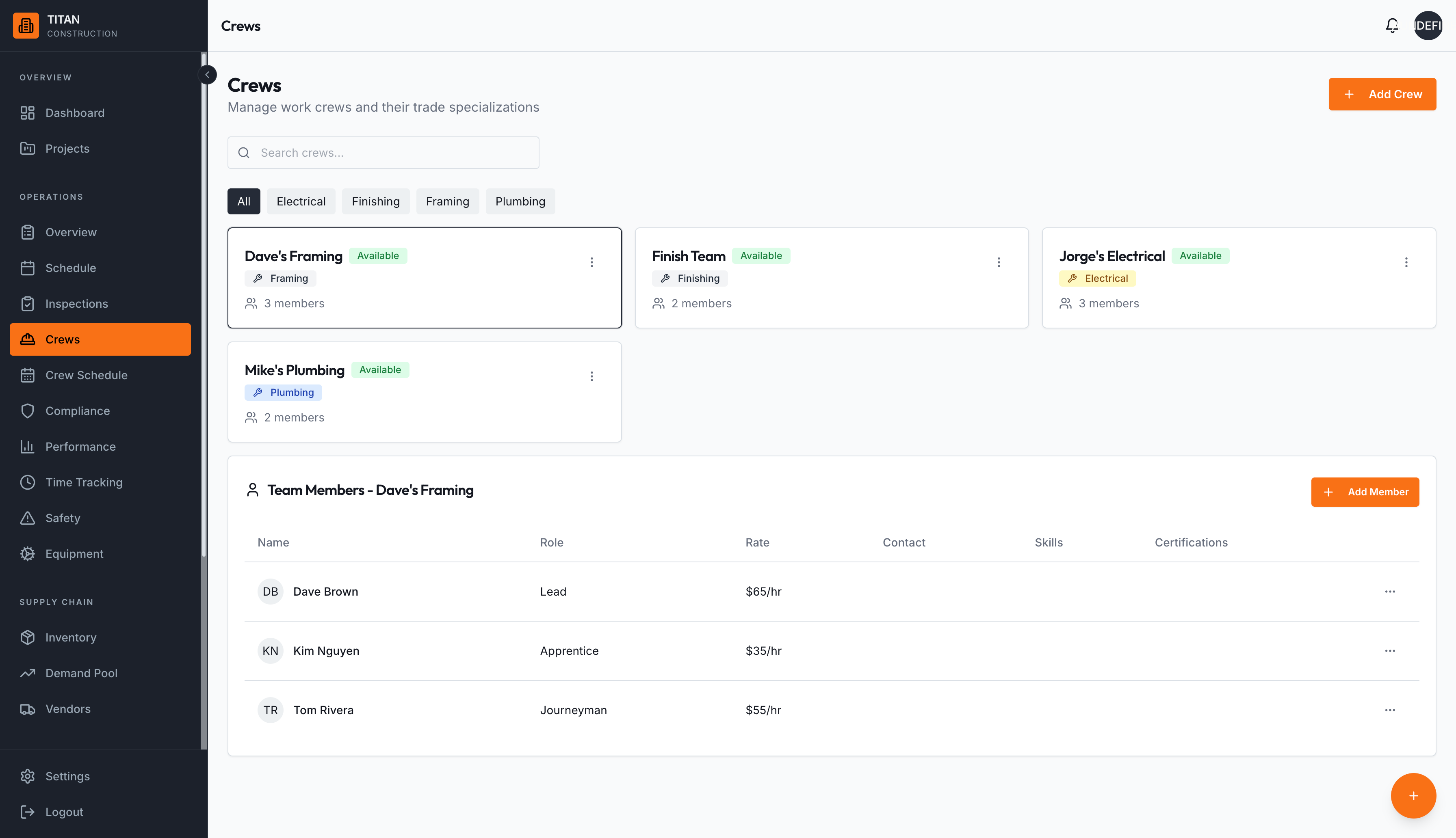
Jake coordinates overlapping trades on the Crew Scheduling Calendar. Color-coded bars show assignments by day — no two crews in the same unit on the same day. He approves a time-off request for Friday, and the calendar updates to show reduced capacity.
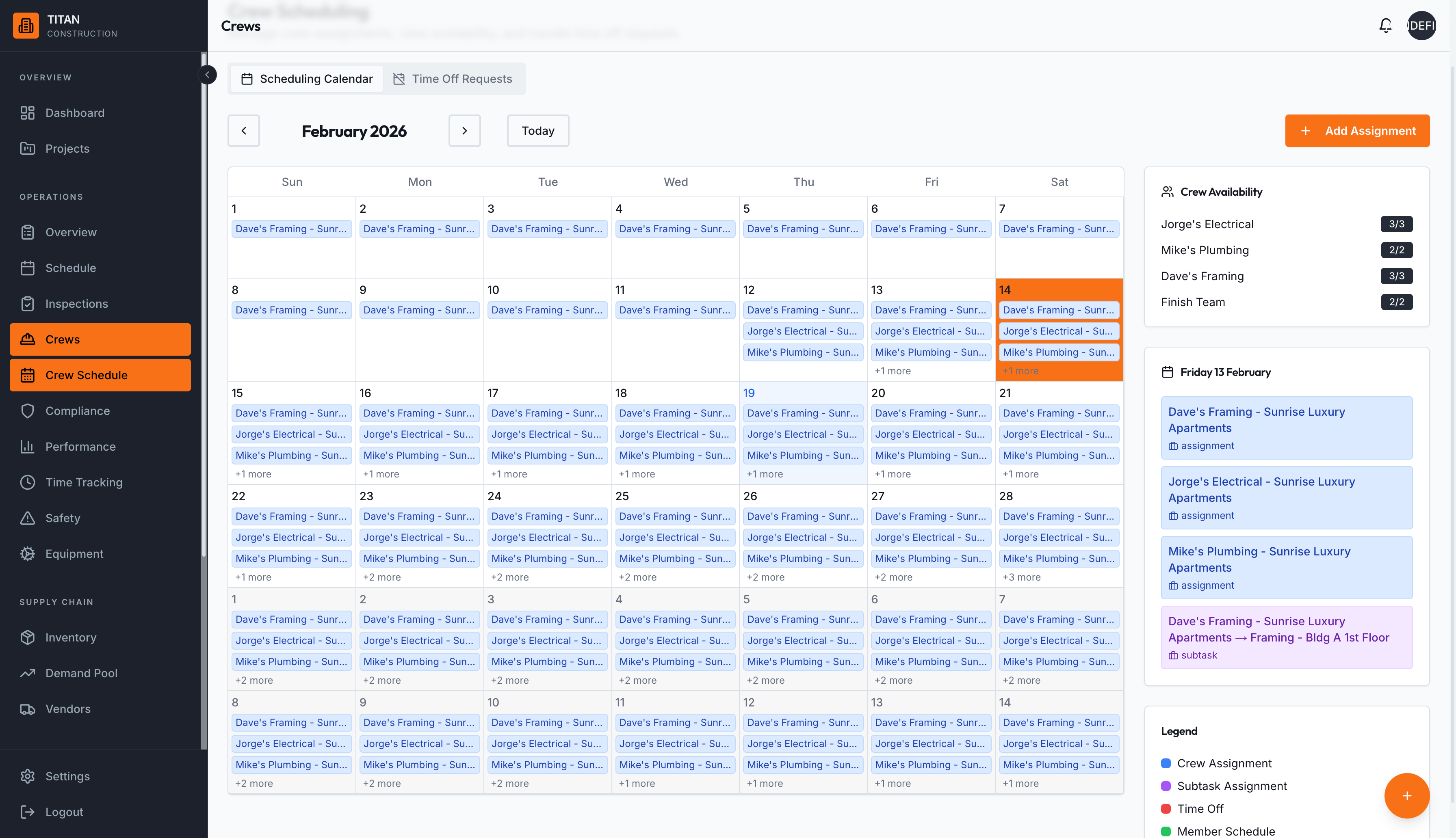
Crew Scheduling Calendar — Color-coded assignments with availability panel
“Can we drag-and-drop assignments on the calendar view and click events to open details?” PARTIALLY AVAILABLE
Drag-and-drop already works on the Resource Timeline (Gantt) view — tasks can be moved between crews. However, the monthly calendar view is form-based only (no drag), and clicking events shows tooltips but doesn't open a detail panel. We are adding: (1) drag-and-drop on the calendar view to move assignments between dates, (2) click-to-open a full detail/edit panel, (3) resize capability on timeline bars to adjust end dates, and (4) improved visual feedback with hover states and drag previews.